
Adding users to your Google Business Profile (formerly Google My Business) is essential for efficiently managing your online presence and delegating responsibilities across your team. The process involves five straightforward steps: signing into your account, navigating to the user management section, inviting a new user via email, assigning the appropriate role (Primary Owner, Owner, or Manager), and sending the invitation. Each role comes with different permission levels—Primary Owners have full control, Owners can manage most aspects except removing the primary owner, and Managers can handle day-to-day tasks like responding to reviews and posting updates.
Properly managing user access ensures your business information stays accurate, customer engagement remains consistent, and your team can collaborate effectively without compromising account security. With over 8.5 billion daily searches on Google, having the right people managing your Google Business Profile is crucial for maintaining visibility and driving local customer engagement.
I’m Danielle Birriel, founder of D&D SEO Services with over 12 years of experience helping businesses implement affordable local SEO services that drive real results. My expertise in Google Business Profile optimization and AI-powered local search strategies has helped hundreds of service businesses dramatically increase their visibility and customer acquisition without breaking the bank.
Why Delegating Access to Your GBP is a Smart Move
Using the Google business profile add user feature is a critical move for business owners who want to share management responsibilities without compromising security. Managing a profile is demanding, but you don’t have to do it all yourself. Adding trusted team members or marketing professionals improves response times, keeps information current, and boosts your local search rankings.
Quick Steps to Add a User:
- Sign in to your Google Business Profile and click the three-dot menu.
- Select “Business Profile settings” then “People and access.”
- Click “Add,” enter their email, choose a role (Owner or Manager), and send the invitation.
User Roles Available:
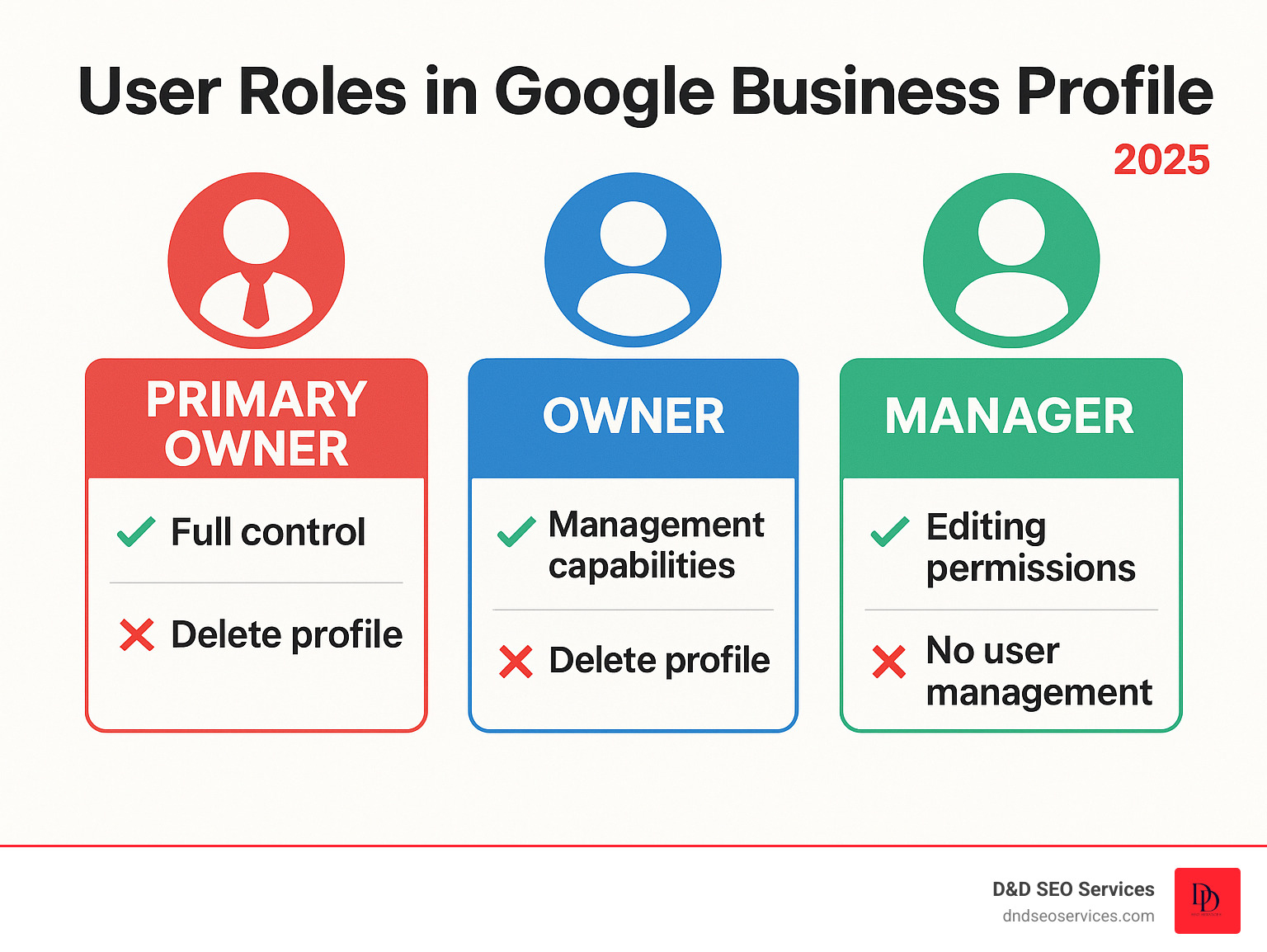
- Primary Owner: Full control, cannot be removed.
- Owner: Can add/remove users and edit everything except deleting the profile.
- Manager: Can edit info and respond to reviews but cannot manage users.
At D&D SEO Services, we’ve seen how proper delegation can transform a business’s online presence. Your Google Business Profile is your digital storefront and the first impression for many potential customers in Fort Myers, Los Angeles, and our service areas across the U.S. An active, well-optimized profile turns searchers on Google and Maps into new customers.
Since local map results often appear above organic links, your GBP is a key part of local SEO. Whether you’re a plumber in Portland or a restaurant in Orlando, your listing can determine if a local customer chooses you. Delegating access leads to better optimization and a stronger presence in the crucial map pack results. To learn more about your local impact, see our insights on Why Map Rankings Matter in Online Business Success.
Understanding Google Business Profile User Roles and Permissions
Before adding team members to your Google Business Profile, understand what access you’re granting. When you Google business profile add user, you create a digital workspace for multiple people to manage your online presence without sharing your personal login credentials. This is crucial for working with an SEO agency or team members who handle daily tasks like responding to reviews and updating hours.
A well-managed profile is key for local SEO success and can mean the difference between appearing in the map pack or being buried. For advanced strategies, our Google My Business Optimization guide offers deeper insights.
| Permission / Role | Primary Owner | Owner | Manager |
|---|---|---|---|
| Edit Business Information | Yes | Yes | Yes |
| Manage Photos | Yes | Yes | Yes |
| Create Posts | Yes | Yes | Yes |
| Respond to Reviews | Yes | Yes | Yes |
| View Insights | Yes | Yes | Yes |
| Add/Remove Users | Yes | Yes | No |
| Transfer Primary Ownership | Yes | No | No |
| Delete Profile | Yes | No | No |
| Remove Themselves | No | Yes | Yes |
What are the different user roles?
Google offers three main user roles for different levels of responsibility.
The Primary Owner has complete control. If you set up and verified the listing, this is you. This role can do everything, including deleting the profile or transferring ownership. The Primary Owner is the only one who can transfer their role and cannot be removed without doing so.
Owners have nearly the same permissions as the Primary Owner. They can edit business info, manage photos, create posts, respond to reviews, and add or remove other users. However, they cannot delete the business profile or transfer primary ownership.
Managers are ideal for day-to-day tasks. They can update business information, respond to reviews, post updates, and manage photos. They cannot manage other users or make major administrative changes, making this role perfect for employees or virtual assistants.
At D&D SEO Services, we typically request Owner access to fully optimize a client’s listing, while the business owner retains ultimate control as the Primary Owner.
Important: 7-Day Limitations for New Owners and Managers
Google imposes a 7-day waiting period for new Owners and Managers before they can perform certain administrative actions. During this time, new users cannot delete or restore your profile, remove other users, or transfer primary ownership. This is a security feature to prevent unauthorized changes.
Plan ahead if you need someone to have full access for an important project by adding them at least a week in advance. If a new user deletes their Google account during this 7-day period, they are automatically removed from your profile. For complete details, refer to Google’s official Manage your Business Profile owners & managers – Google Help page.
How to Google business profile add user: A Step-by-Step Guide
Now that you understand the roles, here is the straightforward process to Google business profile add user. It only takes a few minutes to empower your team.
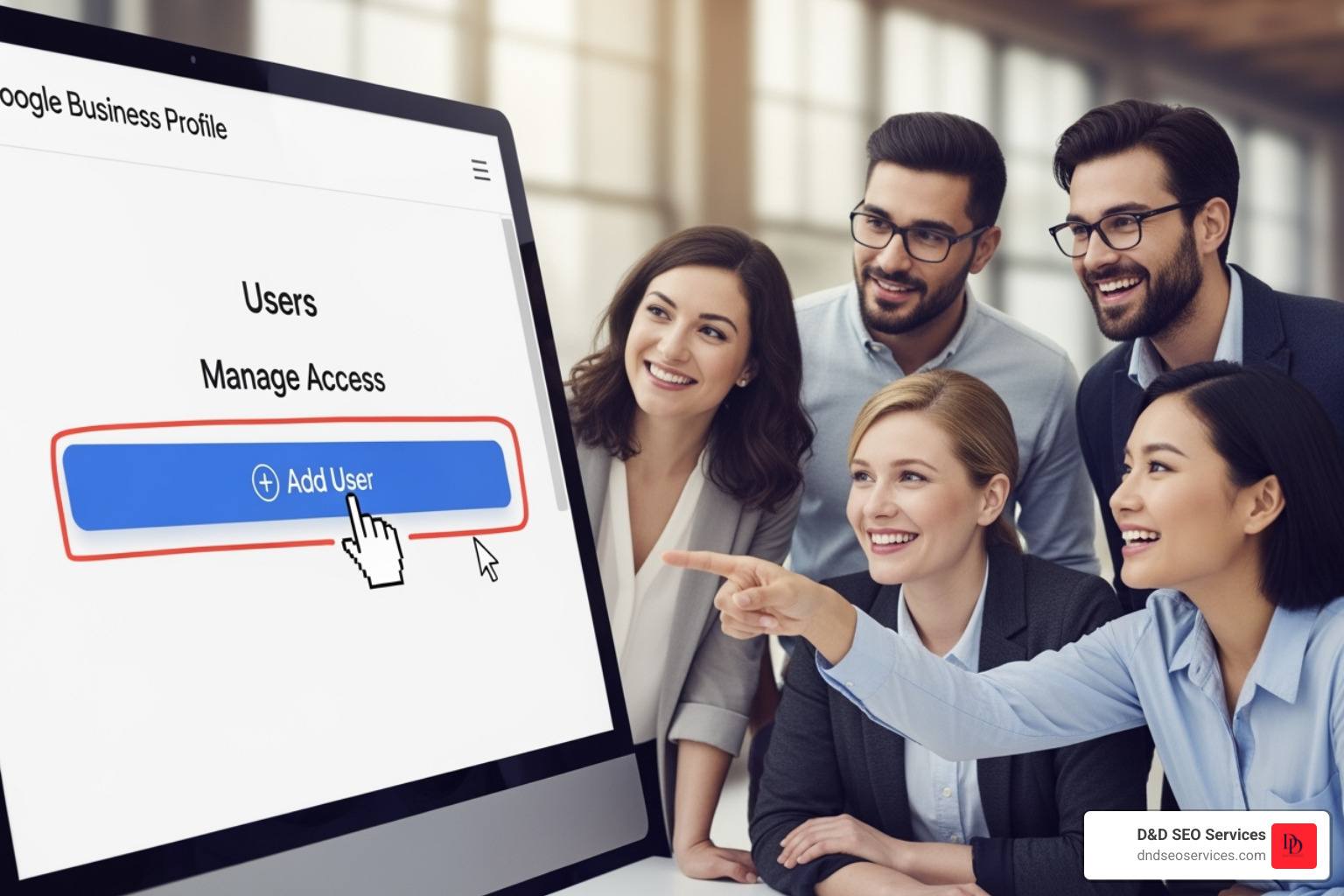
This user-friendly process allows you to quickly onboard team members or grant access to marketing partners.
Step 1: Access Your Business Profile Settings
You can manage your profile directly from Google Search. First, sign in to Google with the account that owns your business profile. Then, search for your business name on Google.
A management panel will appear at the top of the search results. Find and click the three-dot menu to open the dropdown.
From there, select “Business Profile settings” to enter your profile’s control center.

Step 2: Invite a New User
In the “Business Profile settings,” steer to “People and access” on the left-hand menu. This section shows current users and pending invitations.
Click the “Add” button to invite a new team member. In the pop-up window, enter the email address associated with their Google account.
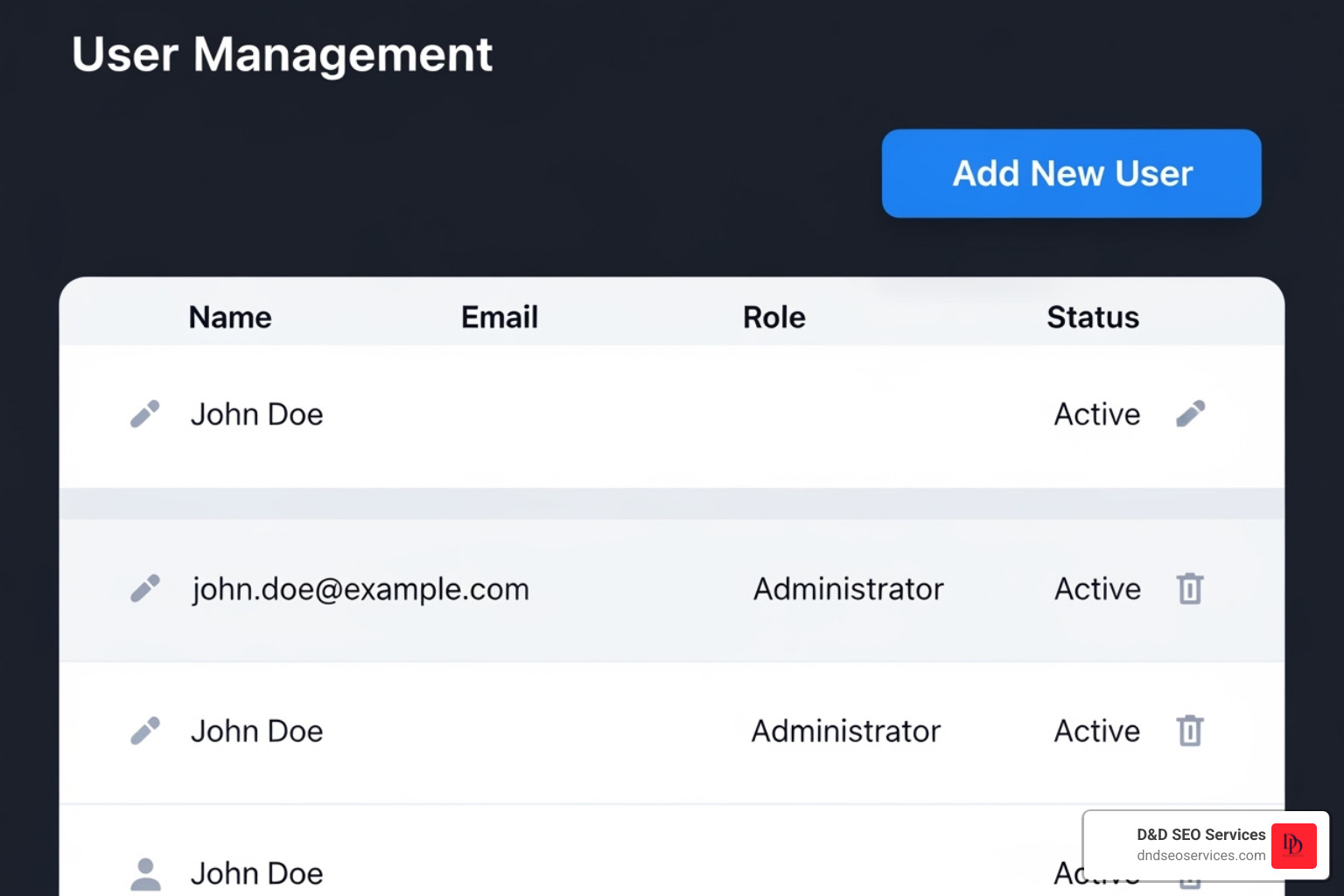
Next, choose the right role. For daily tasks, “Manager” is usually sufficient. For a co-owner or a comprehensive SEO partner like D&D SEO Services, “Owner” provides the necessary access for optimization.
After selecting the role, click “Invite.” An invitation email will be sent to the new user.
Step 3: The New User Accepts the Invitation
The invited person will receive an email from Google Business Profile with an “Accept” button. Once they click it, they are redirected to the GBP dashboard and can begin managing your listing. You will receive a confirmation email.
If an invitation isn’t accepted, you can check its status in the “People and access” section and send a reminder. Once accepted, your new user can help boost your local presence by updating hours, responding to reviews, and posting content, all of which improve your visibility in Google Maps. To learn more about this strategy, explore our guide on What is Google Maps Marketing?.
Advanced User Management: How to Transfer Ownership or Remove a User
User management includes adjusting permissions, transferring ownership, or removing users. These tasks are vital for maintaining the security of your Google Business Profile. At D&D SEO Services, we guide clients through these processes to ensure smooth transitions. Our Google Business Profile Management services cover all these aspects.
How to Remove a User from Your Google Business Profile
When an employee leaves or an agency contract ends, it’s crucial to remove their access promptly to protect your business from unauthorized changes.
- Access “People and access”: Sign in to Google, search for your business, click the three-dot menu, select “Business Profile settings,” and then go to “People and access.”
- Select user: Find the name of the user you wish to remove from the list.
- Click “Remove”: Click the “Remove” button or “X” icon next to the user’s name.
- Confirm removal: A prompt will ask you to confirm the removal. Confirm your decision.
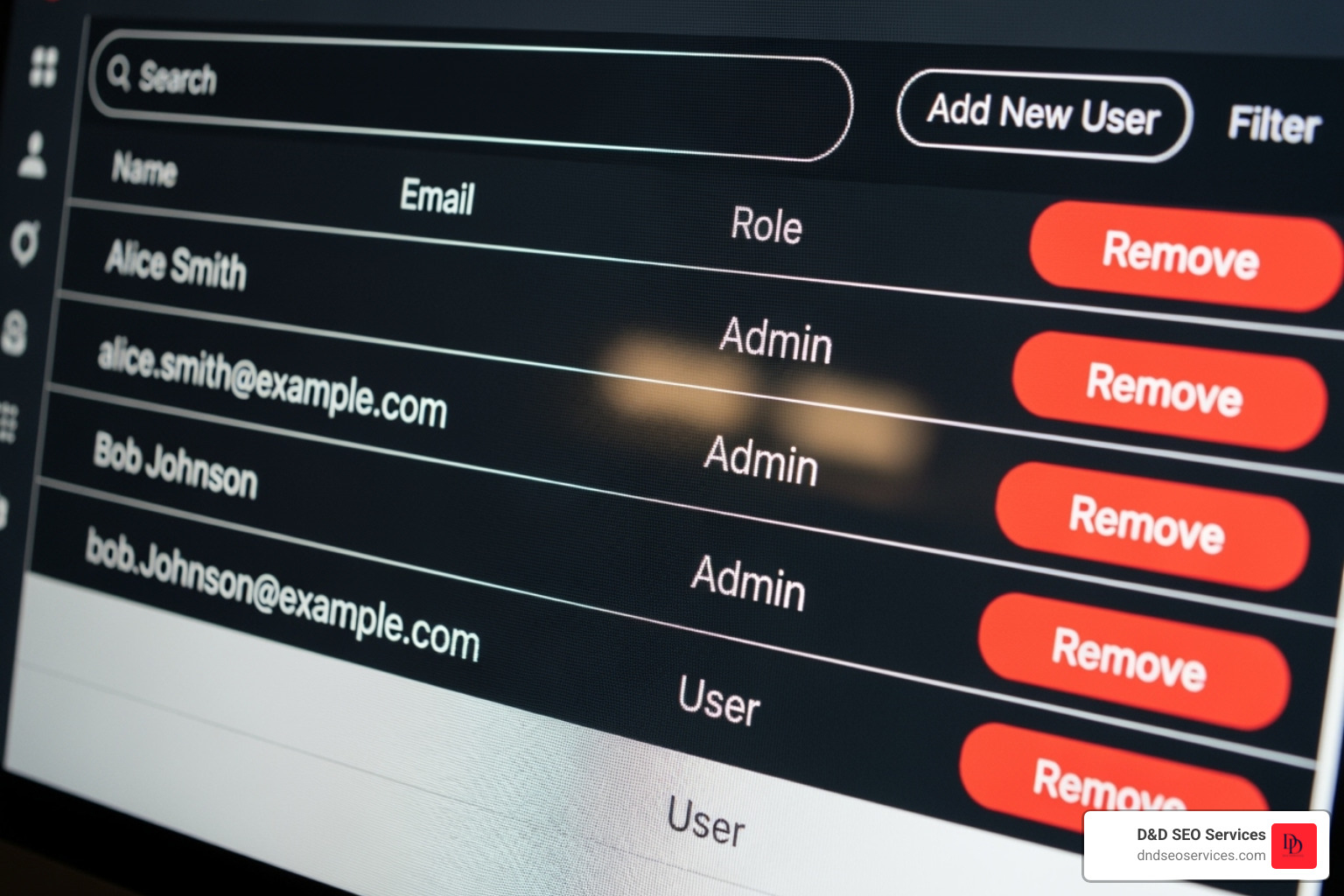
Once removed, the user will no longer have access. Past actions they performed, like posts or review responses, will remain on your profile.
How to Transfer Primary Ownership
Transferring Primary Ownership grants the highest level of control to someone else. This is common when a business is sold or the original owner steps down.
Important Considerations:
- Only the current Primary Owner can initiate the transfer.
- The recipient must already be an Owner of the profile. You may need to change their role from Manager to Owner first.
- The 7-day waiting period applies to new Owners before they can be made the Primary Owner.
Steps to Transfer Primary Ownership:
- Access “People and access”: As the Primary Owner, steer to this section in your settings.
- Select the new Primary Owner: Find the Owner you wish to promote in the user list.
- Change their role to “Primary Owner”: Click on their current role and select “Primary Owner” from the dropdown.
- Confirm transfer: Review the implications and confirm your decision.
The new Primary Owner will be notified by email. For more details, see Google’s guidelines for representing a business.
Best Practices for Secure and Efficient User Management
Effective user management is crucial for your Google Business Profile’s security and performance. Businesses that succeed treat access control as seriously as the keys to their physical storefront. When you Google business profile add user, think of it as an ongoing process, not a one-time setup.
Best Practices for Managing Users
The golden rule is the principle of least privilege: give people just enough access to do their job, but no more. If a team member doesn’t need to manage other users, the Manager role is sufficient.
- Conduct regular access reviews: Quarterly, review who has access to your profile and remove anyone who no longer needs it.
- Educate your team: Ensure everyone with access understands their responsibilities and the importance of keeping information accurate and consistent.
- Promote account security: Remind your team to use strong passwords and two-factor authentication on their own Google accounts.
Common Mistakes to Avoid When You Google business profile add user
Avoid these common, preventable mistakes:
- Granting Owner access too freely: Reserve the Owner role for trusted individuals who truly need administrative capabilities. A social media manager, for example, likely only needs Manager access.
- Forgetting to remove former employees or agencies: This is a major security risk. Remove access immediately when a relationship ends.
- Sharing Primary Owner login credentials: This defeats the purpose of the user role system. Always add users properly instead of sharing your password.
- Ignoring pending invitations: Follow up on or cancel invitations that haven’t been accepted within a week to keep your user list clean.
How an Agency Can Request Access
Sometimes, a marketing agency like D&D SEO Services may request access to your profile, which can streamline their workflow. The agency initiates the request from their dashboard. You will receive an email notification to approve or deny it. You remain in complete control, deciding what level of access to grant. This method helps agencies efficiently manage client relationships while giving them the access needed to help your business succeed. Learn more about our approach as a Google My Business SEO Company.
Frequently Asked Questions about Adding GBP Users
When you Google business profile add user, questions can arise. Here are answers to some common queries to help you steer the process.
What should I do if I don’t have permission to add users?
If you can’t add a user, your current role likely doesn’t allow it. Only a Primary Owner or an Owner can add users. A Manager cannot.
- Check your role: Go to “Business Profile settings” > “People and access” to see your role.
- Find the Primary Owner: This person is listed in the same section.
- Contact the Primary Owner: Ask them to add the new user or change your role to Owner.
- Request access: If you’ve taken over a business and can’t access the profile, you can use Google’s process to request ownership, which may require verification.
Can I add a Google Group as a manager or owner?
No. You cannot add a Google Group as a user on your Google Business Profile. You must invite individuals using their personal Google account email addresses. This ensures clear accountability for any changes made to your profile.
What happens to a profile if the Primary Owner’s Google account is deleted?
This is a critical scenario. If the Primary Owner’s Google account is deleted, the Business Profile can become “unmanaged.” Other Owners can still perform most management tasks, but they cannot add or remove users, transfer primary ownership, or delete the profile.
Reclaiming an unmanaged profile can be a difficult and time-consuming process.
Our best advice: Always have at least two trusted individuals with Owner access. If a Primary Owner is leaving the company, they should transfer primary ownership to another trusted Owner beforehand to prevent any loss of control.
Comprehensive FAQs
How do I add someone to my Google My Business account?
Adding a user to your Google Business Profile is a simple five-step process:
- Sign in to your Google Business Profile account at business.google.com
- Navigate to the Users section by clicking on “Users” in the left-hand menu
- Click “Invite New User” (usually found in the top right corner)
- Enter the email address of the person you want to add and select their role
- Click “Invite” to send the invitation email
The new user will receive an email invitation that they must accept to gain access. Once they accept, you’ll receive a notification confirming their addition to your account. Make sure the person checks their spam folder if they don’t see the invitation within a few minutes.
What are the different user roles in Google Business Profile?
Google Business Profile offers three distinct user roles, each with different permission levels:
Primary Owner
- Highest level of access with complete control
- Can add/remove all users including other owners
- Can transfer primary ownership to another user
- Can delete business listings
- Only one primary owner allowed per location
Owner
- Nearly full access to the business profile
- Can edit all business information
- Can add/remove managers and other owners
- Can respond to reviews and create posts
- Cannot remove the primary owner or transfer primary ownership
- Multiple owners can be assigned
Manager
- Limited permissions for day-to-day operations
- Can edit business information and hours
- Can respond to and manage customer reviews
- Can create posts and updates
- Cannot add or remove any users
- Cannot delete locations or manage user permissions
- Multiple managers can be assigned
Choose roles carefully based on the level of trust and responsibility each person requires.
Can you have multiple users managing one Google Business Profile?
Yes, absolutely. You can have multiple users managing a single Google Business Profile location. The structure allows for:
- One Primary Owner (required)
- Multiple Owners (up to 100 users total across all roles)
- Multiple Managers (up to 100 users total across all roles)
This multi-user capability is particularly valuable for:
- Multi-location businesses: Assign regional managers as Owners and store managers as Managers
- Marketing teams: Give your social media manager and content creator Manager access
- Business partnerships: Share Owner access among business partners
- Agency relationships: Grant your SEO agency Manager or Owner access for profile optimization
Having multiple users ensures your profile stays active and updated even when key team members are unavailable. Just remember to regularly review and remove access for employees who leave or change roles.
How do I remove someone from my Google Business Profile?
To remove a user from your Google Business Profile:
- Sign in to your Google Business Profile account
- Click on “Users” in the left-hand menu
- Locate the user you want to remove in the user list
- Click the X or Remove button next to their name/email
- Confirm the removal when prompted
The user will immediately lose access to your business profile and won’t receive a notification about the removal. It’s best practice to:
- Remove former employees promptly after they leave
- Audit user access quarterly to ensure only current team members have access
- Document who has access and at what level
- Communicate role changes professionally if you’re downgrading someone’s access
Important: Only Primary Owners and Owners can remove other users. Managers cannot remove anyone, including other Managers.
What’s the difference between adding someone to Google Business Profile vs. sharing account credentials?
There are critical differences between properly adding users and simply sharing login credentials:
Adding Users Properly (Recommended):
- Each person uses their own Google account
- Individual activity tracking for accountability
- Granular permission control based on roles
- Easy to revoke access when needed
- Maintains account security
- Complies with Google’s terms of service
- No risk of lockout if someone changes the password
Sharing Credentials (Not Recommended):
- Security risk if password is compromised
- No way to track who made specific changes
- Difficult to revoke access (requires password change)
- Everyone has the same level of access
- Violates Google’s terms of service
- Risk of accidental or malicious changes
- Password sharing creates liability issues
Always add users through the proper user management system rather than sharing your login information.
Can I add someone without giving them full access?
Yes, this is exactly what the Manager role is designed for. If you need someone to help with day-to-day tasks without granting them administrative control, assign them the Manager role.
What Managers Can Do:
- Edit business information (hours, phone number, website, description)
- Upload and manage photos
- Respond to customer reviews
- Create and publish Google Posts
- View insights and analytics
- Manage Q&A section
What Managers Cannot Do:
- Add or remove any users
- Change user roles or permissions
- Delete the business location
- Transfer ownership
- Access or modify payment settings (if applicable)
- Claim additional locations
This makes the Manager role perfect for:
- Social media coordinators who need to post updates
- Customer service reps who respond to reviews
- Marketing assistants who manage photos and content
- Virtual assistants handling routine updates
- External contractors or agencies with limited scope
How long does it take for someone to get access after I send an invitation?
The invitation process is nearly instantaneous:
- Invitation sent: Immediately upon clicking “Invite”
- Email received: Usually within 1-5 minutes
- Access granted: Immediately after accepting the invitation
If the invited user doesn’t receive the email:
- Check spam/junk folders (most common issue)
- Verify you entered the correct email address
- Ensure the email address is associated with a Google account
- Wait up to 24 hours before resending
- Resend the invitation if needed after 24 hours
After accepting the invitation:
- The new user can access the profile immediately
- You’ll receive a notification confirming they’ve accepted
- Their name will appear in your Users list with their assigned role
- They can begin managing the profile based on their permission level
There’s no waiting period or additional verification required once the invitation is accepted.
Do I need to add users to each location separately for multi-location businesses?
Yes, for multi-location businesses, user access is granted per location. This means:
Location-Specific Access:
- Each location has its own user list
- You must add users individually to each location they should manage
- A user with access to Location A won’t automatically have access to Location B
Managing Multiple Locations Efficiently:
- Use Business Profile Manager: Access all locations from one dashboard at business.google.com
- Bulk user management: While adding users isn’t automated, you can switch between locations quickly
- Assign by region: Give regional managers Owner access to their locations only
- Central oversight: The account owner can manage user access across all locations
Best Practices:
- Document which users have access to which locations
- Create a standard role hierarchy (e.g., store managers get Manager access, regional managers get Owner access)
- Review permissions quarterly across all locations
- Use consistent role assignments for similar positions
Example Structure:
- Corporate marketing team: Owner access to all locations
- Regional managers: Owner access to locations in their region
- Individual store managers: Manager access to their specific location only
Can someone with Manager access add other Managers?
No, Managers cannot add, remove, or modify any other users, including other Managers. Only users with Owner or Primary Owner roles have the ability to manage user access.
Permission Hierarchy:
Primary Owner can:
- Add/remove Owners and Managers
- Transfer primary ownership
- Remove any user including other Owners
Owners can:
- Add/remove Managers
- Add/remove other Owners (except the Primary Owner)
- Cannot remove the Primary Owner
Managers can:
- Only manage profile content and engage with customers
- Cannot add, remove, or modify any users
If you need a Manager to help with user management, you’ll need to promote them to Owner status. Consider this carefully, as Owners have significantly more control over the business profile.
What happens if the Primary Owner leaves the company?
If the Primary Owner leaves your company without transferring ownership, you may face significant challenges. Here’s what to do:
Ideal Scenario (Proactive Transfer):
- Before the Primary Owner leaves, they should transfer primary ownership to another trusted person
- Go to Users → Click the three dots next to an existing Owner → Select “Make primary owner”
- The new Primary Owner immediately gains full control
If Primary Owner Leaves Without Transferring:
Option 1: Contact the Former Primary Owner
- Request they sign in and transfer ownership
- This is the fastest solution if they’re cooperative
Option 2: Request Ownership Through Google
- Sign in to Google Business Profile
- Search for your business
- Click “Claim this business” or “Request access”
- Follow Google’s verification process
- Provide documentation proving you represent the business (business license, utility bills, tax documents)
- Wait for Google’s review (can take several weeks)
Option 3: Create a New Profile
- Only as a last resort if ownership cannot be recovered
- Risk of duplicate listings that harm SEO
- You’ll lose all reviews, photos, and history
Prevention Strategy:
- Always have at least two Owners (not just the Primary Owner)
- Use a business email for the Primary Owner (not a personal email)
- Document access credentials securely
- Establish a succession plan for profile management
Can I see who made changes to my Google Business Profile?
Unfortunately, Google Business Profile doesn’t provide a detailed audit log showing exactly who made specific changes. However, you can take steps to maintain accountability:
Limited Tracking Available:
- You can see who currently has access and their roles in the Users section
- Some changes may show “Edited by [name]” in the profile manager
- Google’s support may be able to provide limited information about changes
Best Practices for Accountability:
- Limit access to only those who absolutely need it
- Use specific roles rather than giving everyone Owner access
- Document changes by having your team log major updates in a shared document
- Regular audits of your profile information to catch unauthorized changes
- Use project management tools to track who’s responsible for different profile tasks
- Review the Users list monthly to ensure only current team members have access
If You Suspect Unauthorized Changes:
- Review your Users list immediately
- Remove any unauthorized users
- Change your Google account password if you’ve shared credentials
- Revert any incorrect information in your profile
- Add two-factor authentication to your Google account
- Contact Google Business Profile support if needed
What information should I never share with someone who has Manager access?
Even though Managers have limited permissions, you should maintain boundaries with sensitive information:
Never Share With Managers:
- Your Google account password or login credentials
- Primary Owner or Owner-level access unless absolutely necessary
- Access to your personal Google account
- Financial information or payment details
- Access to other Google services (Gmail, Drive) unless specifically needed
- Verification codes or two-factor authentication details
What Managers Already Have Access To:
- Business name, address, phone number
- Customer reviews and Q&A responses
- Post history and scheduled posts
- Photos and videos uploaded to the profile
- Business insights and performance data
Security Best Practices:
- Use separate Google accounts for personal and business purposes
- Enable two-factor authentication on the Primary Owner account
- Grant the minimum access level needed for each person’s role
- Regularly review and audit who has access
- Create a clear policy about what information can be shared externally
- Remove access immediately when someone leaves the company
How do I handle access for an SEO agency or marketing contractor?
When working with external agencies or contractors, follow these best practices for managing access:
Recommended Approach:
- Assign Manager Role (Most Common)
- Sufficient for most SEO and marketing tasks
- Allows content updates, review responses, and posting
- Doesn’t grant ability to remove you or other users
- Easy to revoke when the contract ends
- Assign Owner Role (When Necessary)
- Only for agencies requiring deeper access
- Useful if they’re managing multiple aspects of your local SEO
- Ensure a solid contract and NDA are in place
- Monitor their activity regularly
Best Practices:
Before Granting Access:
- Have a signed contract outlining scope and responsibilities
- Establish what changes require your approval
- Set up regular reporting schedules
- Document their access level and duration
During the Engagement:
- Request monthly reports on changes made
- Review updates to your profile regularly
- Maintain communication about strategy and tactics
- Keep your Primary Owner role—never transfer it to an agency
When Ending the Engagement:
- Remove their access immediately after contract termination
- Audit your profile for any unexpected changes
- Change passwords if credentials were shared (not recommended)
- Request final documentation of all work completed
Red Flags to Avoid:
- Agencies requesting Primary Owner access
- Contractors asking for your password instead of proper user access
- Agencies refusing to grant you Owner access to your own profile
- Contractors who want to create the profile under their account
Can someone I add access my other Google services?
No, adding someone to your Google Business Profile does not give them access to your other Google services. User access is specifically limited to the business profiles you’ve granted them permission to manage.
What They CANNOT Access:
- Your Gmail email account
- Your Google Drive files
- Your YouTube channel
- Your Google Ads account (unless separately granted)
- Your Google Analytics (unless separately granted)
- Your personal Google Calendar
- Your Chrome bookmarks or browsing history
- Any other Google services associated with your account
What They CAN Access:
- Only the specific Google Business Profile locations you’ve added them to
- Profile information, reviews, posts, and insights for those locations only
- Nothing outside the Google Business Profile platform
Security Tips:
- Use a dedicated Google account for business purposes separate from personal email
- Never share your account password—always use proper user management
- Enable two-factor authentication on your Google account
- Regularly review connected apps and permissions
- Use Google’s Security Checkup tool to monitor account activity
This separation ensures your personal information and other business tools remain private and secure even when collaborating with team members on your Google Business Profile.
What should I do if I accidentally removed the wrong person?
If you accidentally remove someone from your Google Business Profile, don’t panic—you can easily re-add them:
Immediate Steps:
- Re-invite them immediately using the same process you used initially
- Select the same role they had before (Owner or Manager)
- Send the invitation right away
- Communicate with them to explain it was accidental and ask them to accept the new invitation
What Happens After Re-inviting:
- They’ll receive a new invitation email
- Once accepted, they regain access immediately
- Their previous work and contributions aren’t lost (reviews responses, posts, etc. remain)
- No data is deleted from the profile
To Prevent Accidental Removals:
- Double-check before clicking “Remove” or the X button
- Take your time when reviewing the Users list
- Create a documented list of who should have access and at what level
- Consider setting a policy requiring confirmation before removing users
- Only allow Primary Owner or most senior Owner to remove users
If You Can’t Reach Them:
- Check if you have their correct email address
- Try alternative contact methods (phone, company email)
- Resend the invitation if the first email was missed
- Check with your team to see if they’ve left the company
The good news is that accidental removal doesn’t cause permanent damage to your profile—it’s just a matter of re-inviting the person and having them accept the invitation again.
Take Control of Your Google Business Profile Today
Managing your Google Business Profile effectively requires the right team, the right tools, and the right strategy. While adding users is straightforward, optimizing your entire local SEO presence takes expertise and consistent effort.
Why Partner with D&D SEO Services?
At D&D SEO Services, we don’t just help you manage your Google Business Profile—we transform it into a powerful customer acquisition engine. With over a decade of experience helping local businesses dominate their markets, we know exactly what it takes to rank in the Google 3-Pack and convert searches into sales.
Our Google Business Profile Management Services Include:
✅ Complete Profile Optimization – We ensure every section of your profile is fully optimized for maximum visibility
✅ Strategic Review Management – We help you generate authentic reviews and respond professionally to build trust
✅ Engaging Google Posts – We create and publish regular posts that keep your profile active and engaging
✅ Performance Tracking – We monitor your insights and provide detailed reporting on your profile’s impact
✅ Multi-Location Management – We efficiently manage profiles across all your business locations
✅ Competitive Analysis – We analyze your competitors and implement strategies to outrank them
Our Proven Results Speak for Themselves
We’ve helped hundreds of local businesses increase their visibility, generate more calls, and drive more foot traffic. Our AI-powered local SEO strategies combined with hands-on profile management deliver measurable results that impact your bottom line.
Ready to Dominate Your Local Market?
Don’t let your competitors capture the customers searching for your services right now. Whether you need help setting up your Google Business Profile, adding and managing users, or implementing a comprehensive local SEO strategy, we’re here to help.
Get Started Today:
📞 Call us at (239) 276-8138 to speak with a local SEO specialist
💻 Schedule your free consultation and discover how we can transform your local presence
📧 Email us at dndseoservices@gmail.com with your questions
During your free consultation, we’ll:
- Audit your current Google Business Profile
- Identify opportunities for immediate improvement
- Create a customized strategy for your business
- Show you exactly how we can help you dominate local search
Serving Fort Myers and Beyond
Based in Fort Myers, we have deep expertise in the local market while serving businesses across the United States. From Fort Myers and Cape Coral to Tampa, Miami, Orlando, and beyond—we help businesses like yours achieve sustainable growth through proven local SEO strategies.
Don’t wait to optimize your local presence. Your competitors aren’t waiting—and neither should you.
Schedule Your Free Consultation Now | View Our Local SEO Services | Read Our Client Success Stories
At D&D SEO Services, we combine cutting-edge AI-powered optimization with time-tested local SEO strategies to help your business capture more customers, earn more revenue, and become the go-to choice in your market. Let’s grow your business together.
The Strategist Behind D&D SEO Services
I’m Danielle Birriel, founder of D&D SEO Services. For over 12 years, I’ve been helping local service businesses—from plumbers and HVAC companies to medspas, dentists, and in-home care providers—outrank competitors, attract more qualified leads, and turn online searches into paying customers.
I’m not here to sell you “SEO in a box.” I’m here to solve real problems local business owners face every day:
- You’re buried on Google while competitors dominate the top spots.
- Your phone isn’t ringing enough despite having great services.
- Your Google Business Profile isn’t optimized and isn’t bringing in leads.
- You’ve been burned by agencies promising results but delivering cookie-cutter strategies.
- You don’t know if your marketing is actually working because you’re not getting transparent reporting.
I built D&D SEO Services to change that.